Free Gift Selection in Cart Progress
Free Gift is one of the reward types available in Cart Progress. When buyers reach the minimum spending requirement of a tier, merchants can reward them with free products as an incentive to increase their order value and make the shopping experience more rewarding.
With Free Gift Selection, merchants can choose how buyers receive the gifts when they unlock a tier.
Free Gift Selection in Cart Progress
Under Free Gift Rule, there are two options:
1. All Gifts — Give buyers all gifts in the list
With this option, buyers receive all gifts added to the gift list when they unlock the tier.
For example, you can set up:
- Gift A × 1
- Gift B × 2
- Gift C × 1
When buyers unlock the tier, they will receive all of the gifts according to the quantities you configured.
This option is suitable when you want to create a complete free gift bundle for buyers.
2. Selectable — Let buyers pick a certain number of gifts from the list
With this option, buyers can choose a specific number of gifts from the gift list when they unlock the tier.
For example:
- Number of gifts buyers can select: 2
- Gift list: Doll, Teddy Bear, Puzzle
When buyers unlock the tier, they can choose 2 gifts from the 3 available options.
- For example, they can choose:
- 1 Doll + 1 Teddy Bear
- 1 Doll + 1 Puzzle
- 1 Teddy Bear + 1 Puzzle
Each gift can be selected only once.
How to Set Up Free Gift Selection
Step 1: Add Free Gift as a reward
In Cart Progress, create or edit a tier and select Free Gift as the reward. Set the minimum spending amount buyers need to reach to unlock the reward.
Step 2: Choose a Free Gift Rule
Under Free Gift Rule, choose how buyers will receive their gifts:
- All Gifts — Buyers receive all gifts in the gift list.
- Selectable — Buyers can choose a specific number of gifts from the gift list.
Step 3: Set up your gifts

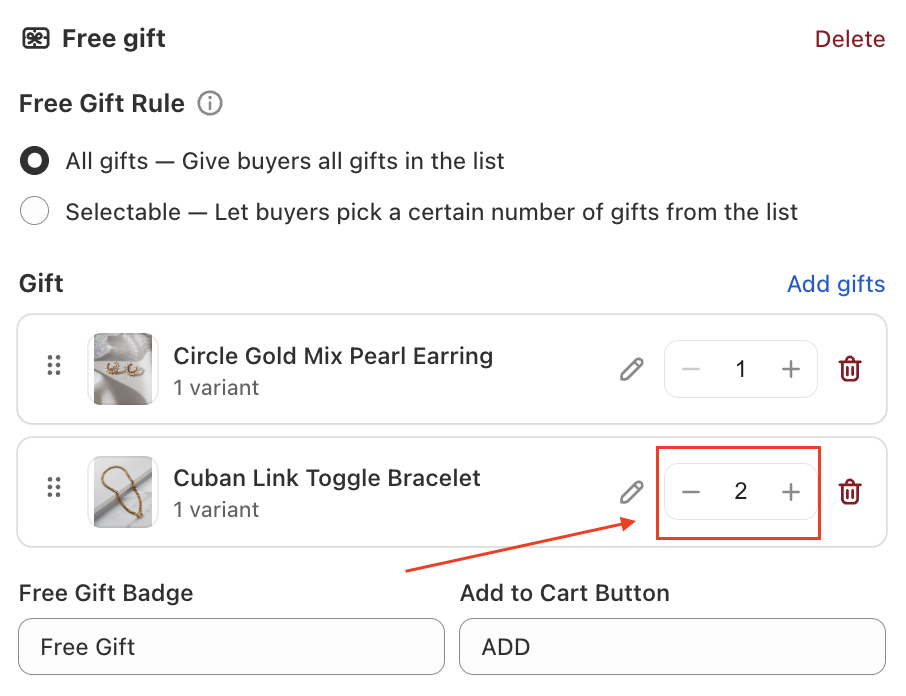
If you select All Gifts
- Click Add Gifts and add the products you want to offer as free gifts.
- You can also configure the quantity for each gift. For example:
- Gift A × 1
- Gift B × 2
Buyers will receive all 3 gift items when they unlock the tier.
If you select Selectable
- First, enter the Number of gifts buyers can select. For example, enter 2 if you want buyers to choose 2 gifts.
- Then, click Add Gifts to create your gift list. For example:
- Number of gifts buyers can select: 2
- Gift list: 6 hats
When buyers unlock the tier, they can select 2 hats from the 6 available options.
Step 4: Save your Cart Progress
Once your reward settings are complete, save the Cart Progress offer. Buyers will be able to receive or select their free gifts according to the rule you configured when they unlock the tier.
--
If you have any questions about Free Gift Selection or need further assistance with setting up your Cart Progress offer, feel free to reach out to our support team at support@tapita.io