Importing Size Chart Data Between Stores
If you manage more than one Shopify store, you can import size charts and style settings from one store directly into another — no need to recreate them manually. This guide walks you through where to find this feature and how to use it.
Go to the store you want to import data into, then:
Go to the store you want to import data into, then:
1. Open Settings.
2. Find the Data migration section.
3. Click Import data.
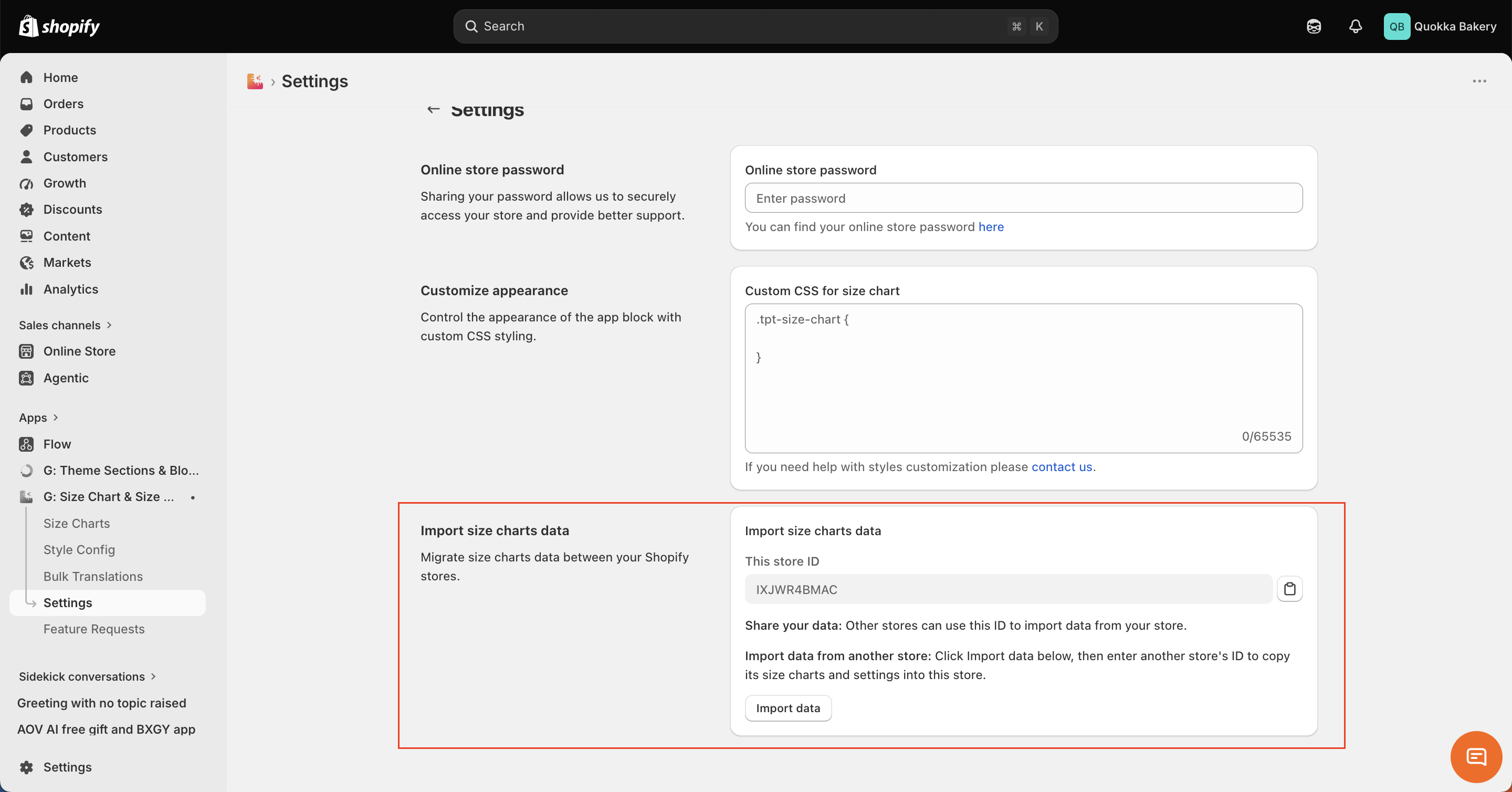
This opens a modal where you'll enter the details of the store you want to import from, and choose what data to import.
This opens a modal where you'll enter the details of the store you want to import from, and choose what data to import.
In the Import data modal:
1. In the Source store ID field, enter the Store ID of the store you want to import from.
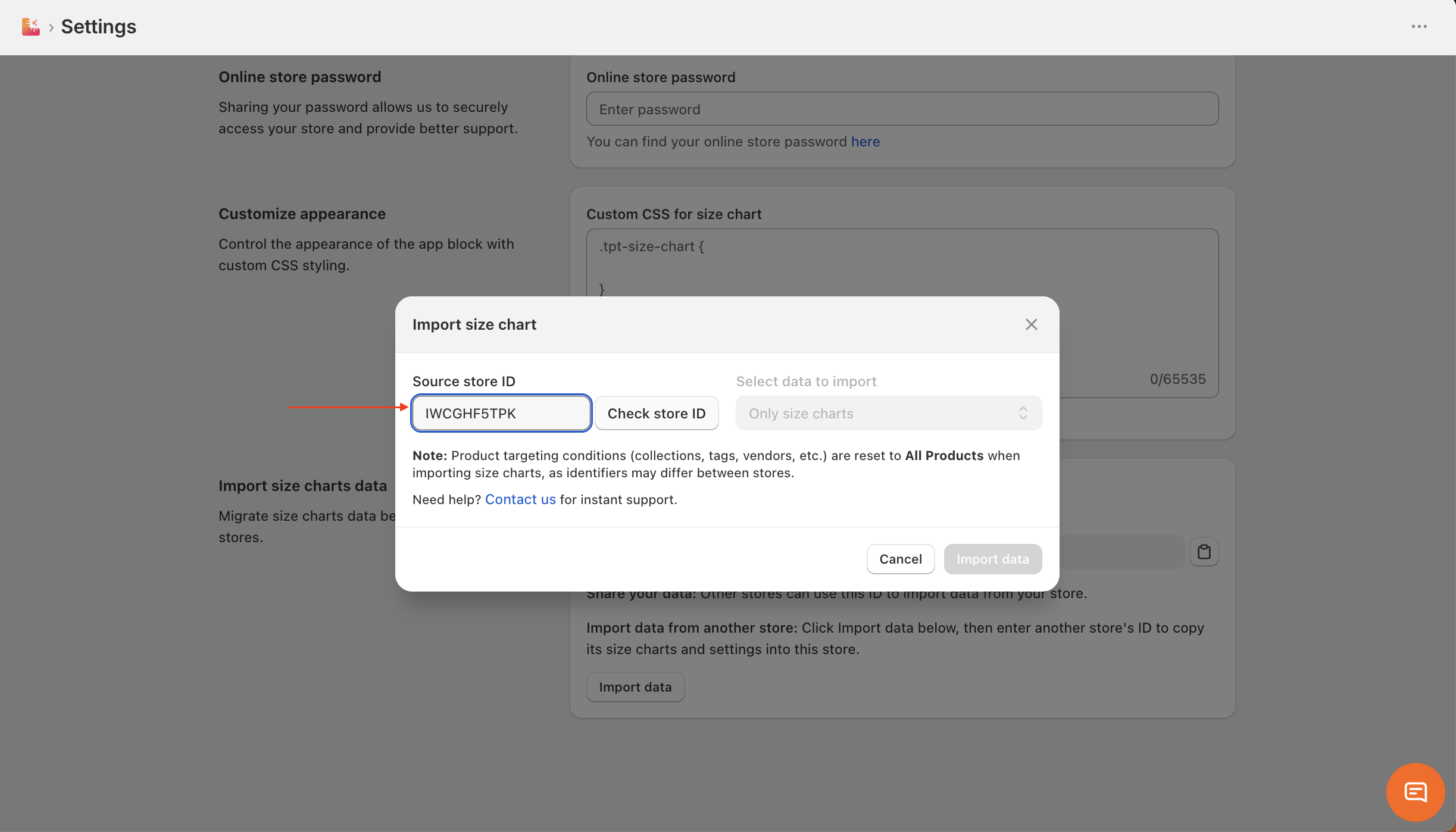
*What is store ID? Every store using G: Size Chart is automatically assigned a unique Store ID, which you can find in the same Data migration section on that store.
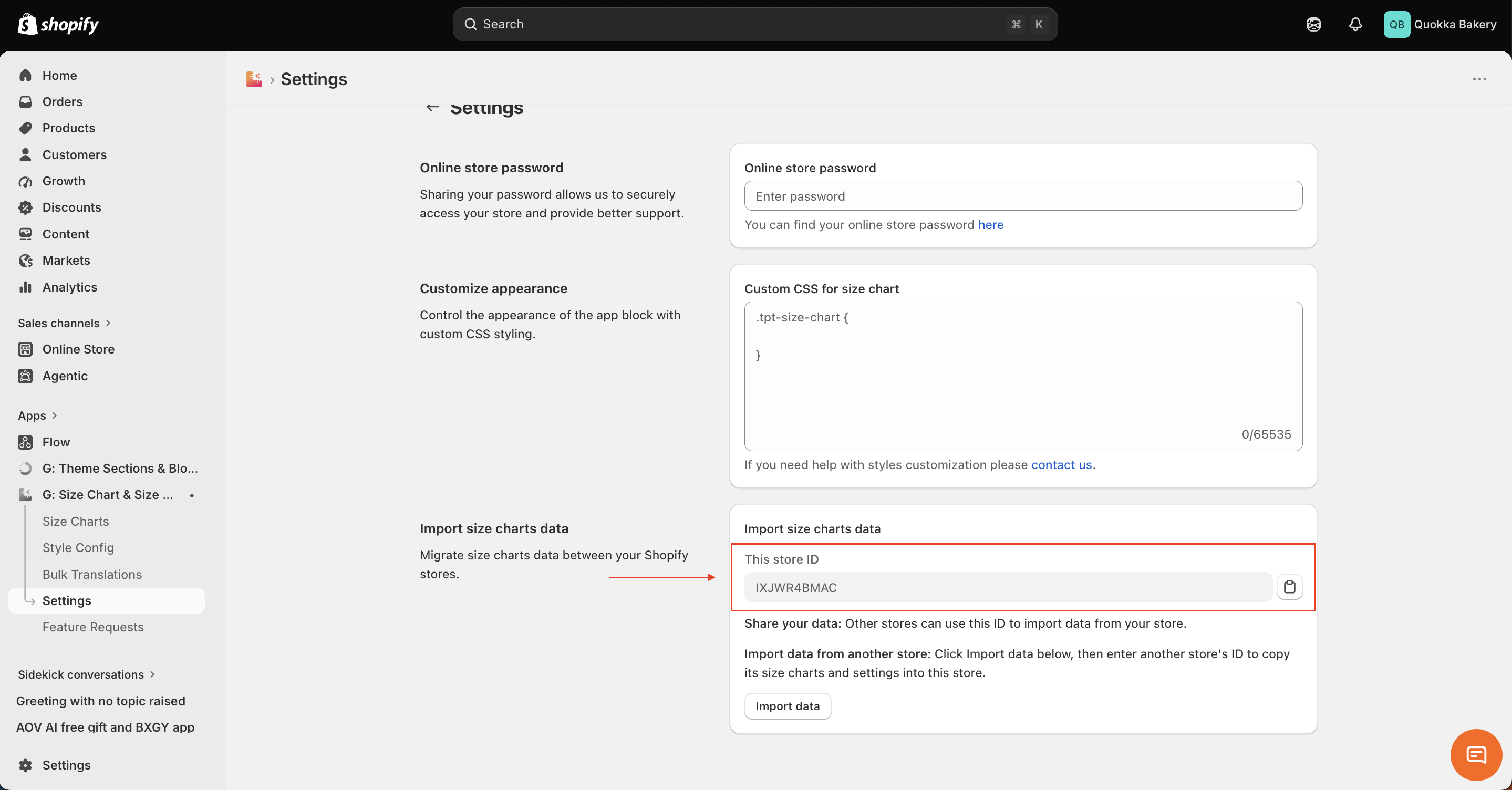
*What is store ID? Every store using G: Size Chart is automatically assigned a unique Store ID, which you can find in the same Data migration section on that store.
2. Click Check store ID. This confirms the store and shows its shop name, domain, and how many size charts are available.
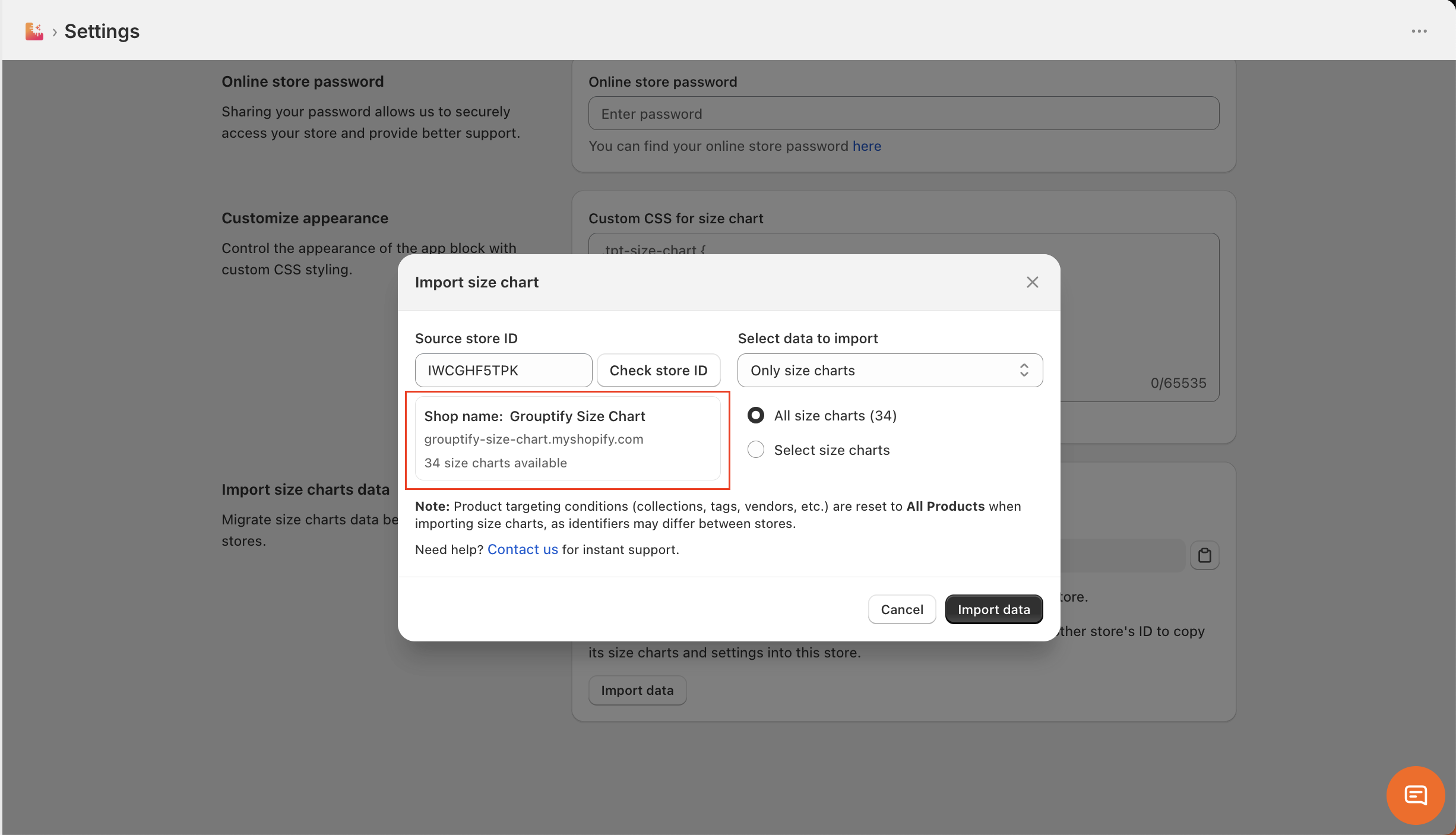
3. Under Select data to import, choose what you'd like to bring in: Only size charts, Only style config, or All data.
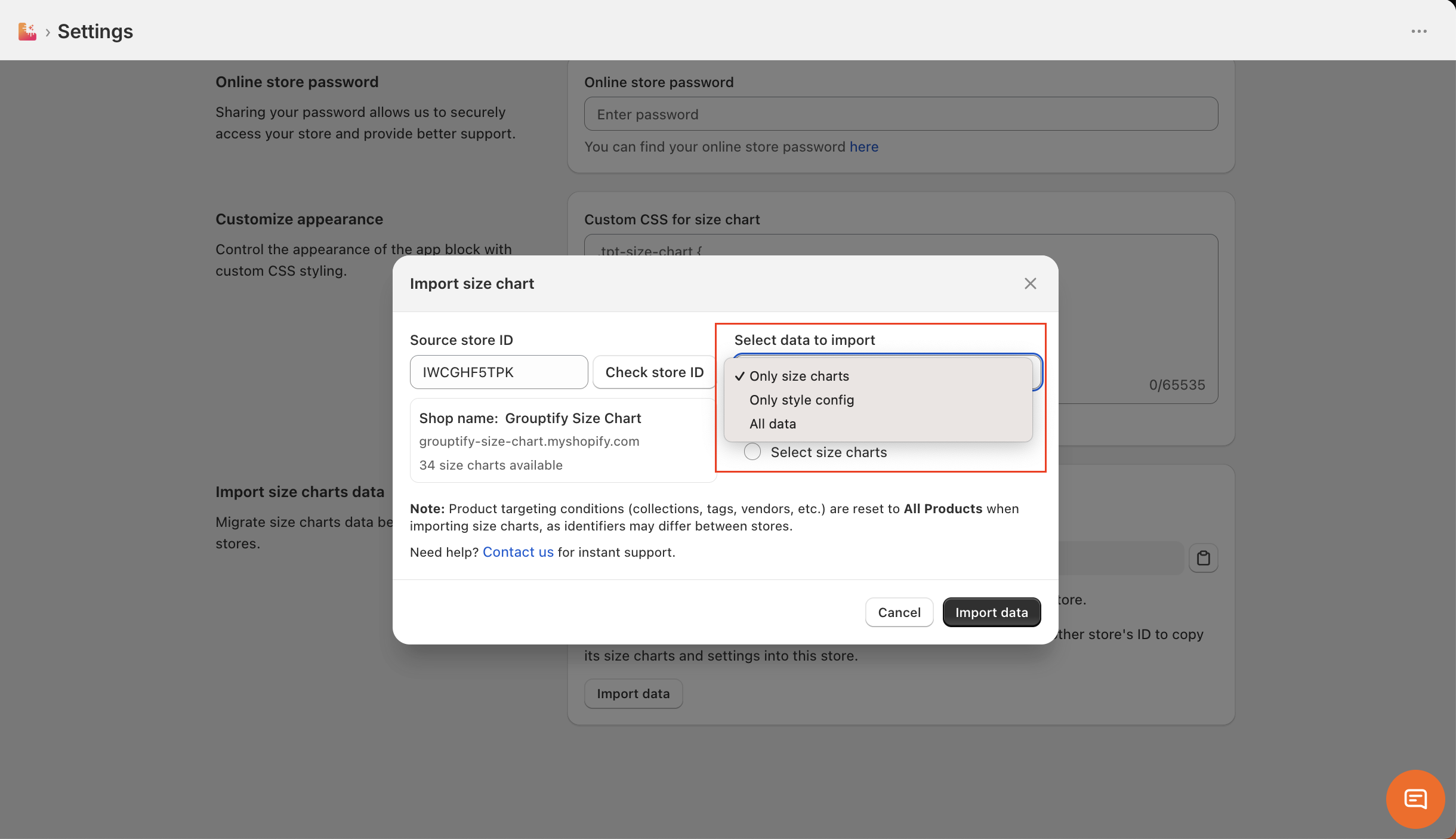
*If you're importing size charts, choose whether to import all of them or select specific charts.
*If you're importing size charts, choose whether to import all of them or select specific charts.
4. Click Import data to complete the process.
Important notes: Product targeting conditions (such as collections, tags, and vendors) are reset to All Products when size charts are imported. This is because product identifiers are unique to each store and can't be matched between stores. After importing, you can go back into each size chart and set your targeting conditions again.
Need help?
If you run into any issues while importing data between stores, click Contact us on the Import data screen to chat with our support team, or reach out anytime at support@tapita.io.