Using Shopify Sidekick with G: Size Chart
Shopify Sidekick is Shopify's AI assistant built into the Shopify admin - you can chat with it to get guidance, check store data, or complete tasks without switching between apps or screens.
Sidekick is integrated with G: Size Chart to help you look up your size chart data, get step-by-step guidance, and translate your size charts - all in plain language, right from where you're already working.
Sidekick is integrated with G: Size Chart to help you look up your size chart data, get step-by-step guidance, and translate your size charts - all in plain language, right from where you're already working.
How it works
Once G: Size Chart is installed on your store, Sidekick automatically has access to your size chart data. There's nothing to set up, just open Sidekick in your Shopify admin and ask a question.
The first time you ask about G: Size Chart, Sidekick will ask for your consent to access the app's data. Click Yes to continue, or Yes, and don't ask again to skip this prompt for future requests.
What Sidekick can help with
Look up information
- Check your size chart list and status (Active / Draft). e.g. "How many active size charts do I have?"
- See which products, collections, tags, or countries a size chart applies to. e.g. "Which products is size chart "Women's Apparel" showing on?"
- Check display settings - Inline Button, Floating Button, and position. e.g. "Is size chart "Kids Wear" set to Inline Button or Floating Button?"
- Check which languages a size chart has been published in, and translation status. e.g. "Are there any size charts not yet translated into German?"
How-to guidance
- Learn how to create and manage size charts. e.g. "How do I create a size chart from a template?"
- Learn how to configure the display settings. e.g. "How do I change where the size chart displays on the product page?"
- Learn how to use other features, like Unit Converter. e.g. "What is Table direction and where do I configure it?"
Task execution
- Sidekick can translate size charts for you - for a single chart or in bulk. These are automatic translations: Sidekick drafts the content, and you review and confirm it before anything is saved.
- Translate a single size chart into a specific language. e.g. "Translate size chart "Women's Apparel" into Japanese."
- Bulk translate multiple size charts at once. e.g. "Bulk translate all Active size charts into Spanish."
How to use it
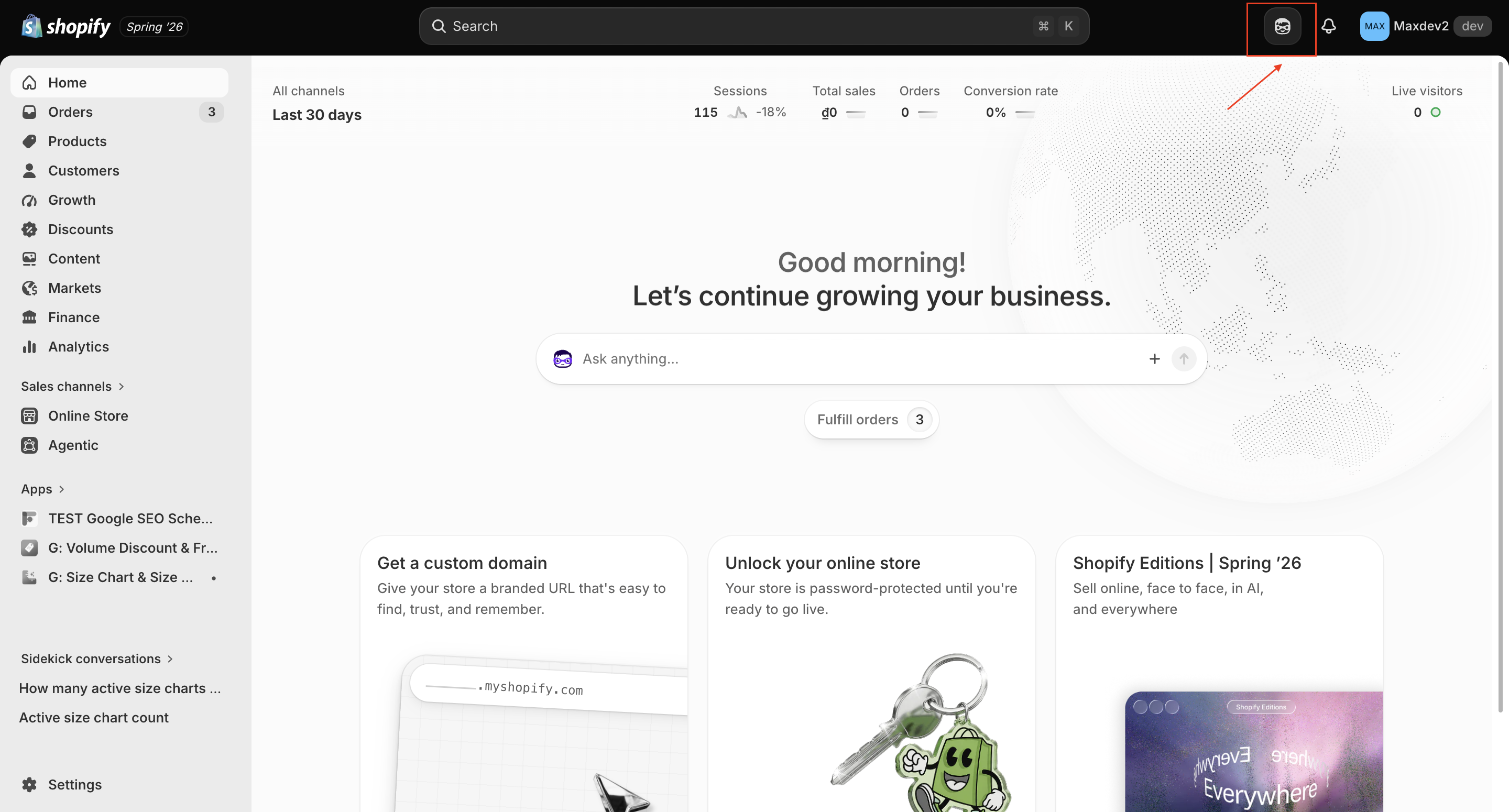
Step 1. From your Shopify admin, click the Sidekick icon in the top bar to open Sidekick chat box.
Step 2. Type a question about your size charts, or ask Sidekick to take an action.
Step 3. If this is your first request, Sidekick will ask for your consent to access G: Size Chart data. Click Yes or Yes, don't ask again to continue.
Step 4. For questions, Sidekick replies directly in the chat with information from your G: Size Chart data.
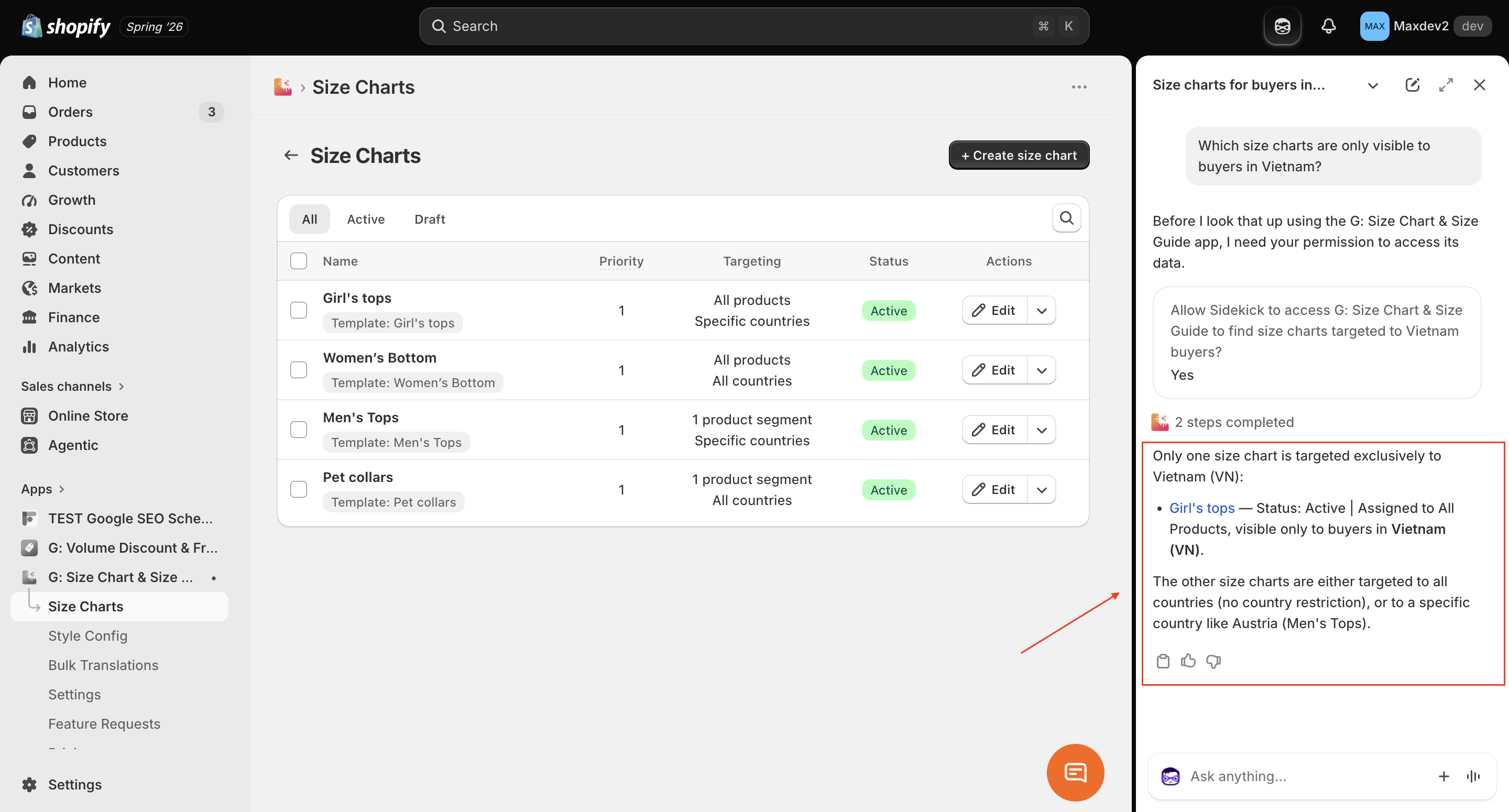
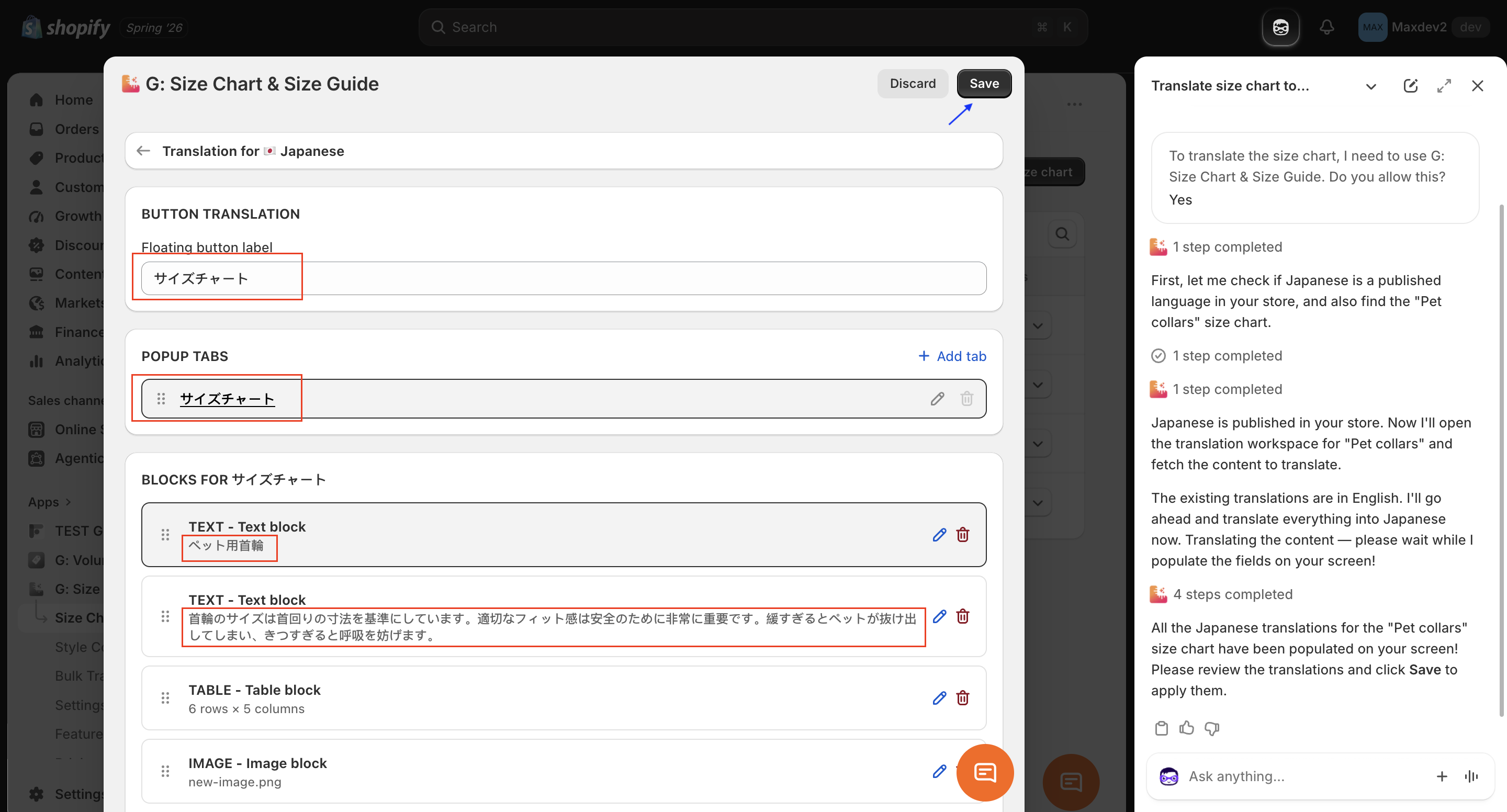
Step 5. For actions like translation, Sidekick opens a modal in app to implement action in G: Size Chart so you can review its work and save the changes.
Example questions to try
Here are some examples of what you can ask Sidekick about your G: Size Chart data:
Example Prompt | Example Sidekick reply |
How many active size charts do I have? | |
Which products is size chart "Women's Apparel" showing on? | |
How do I assign a size chart to multiple products at once? | |
How do I create a size chart from a template? | |
Translate size chart "Pet collars" into Japanese. | |
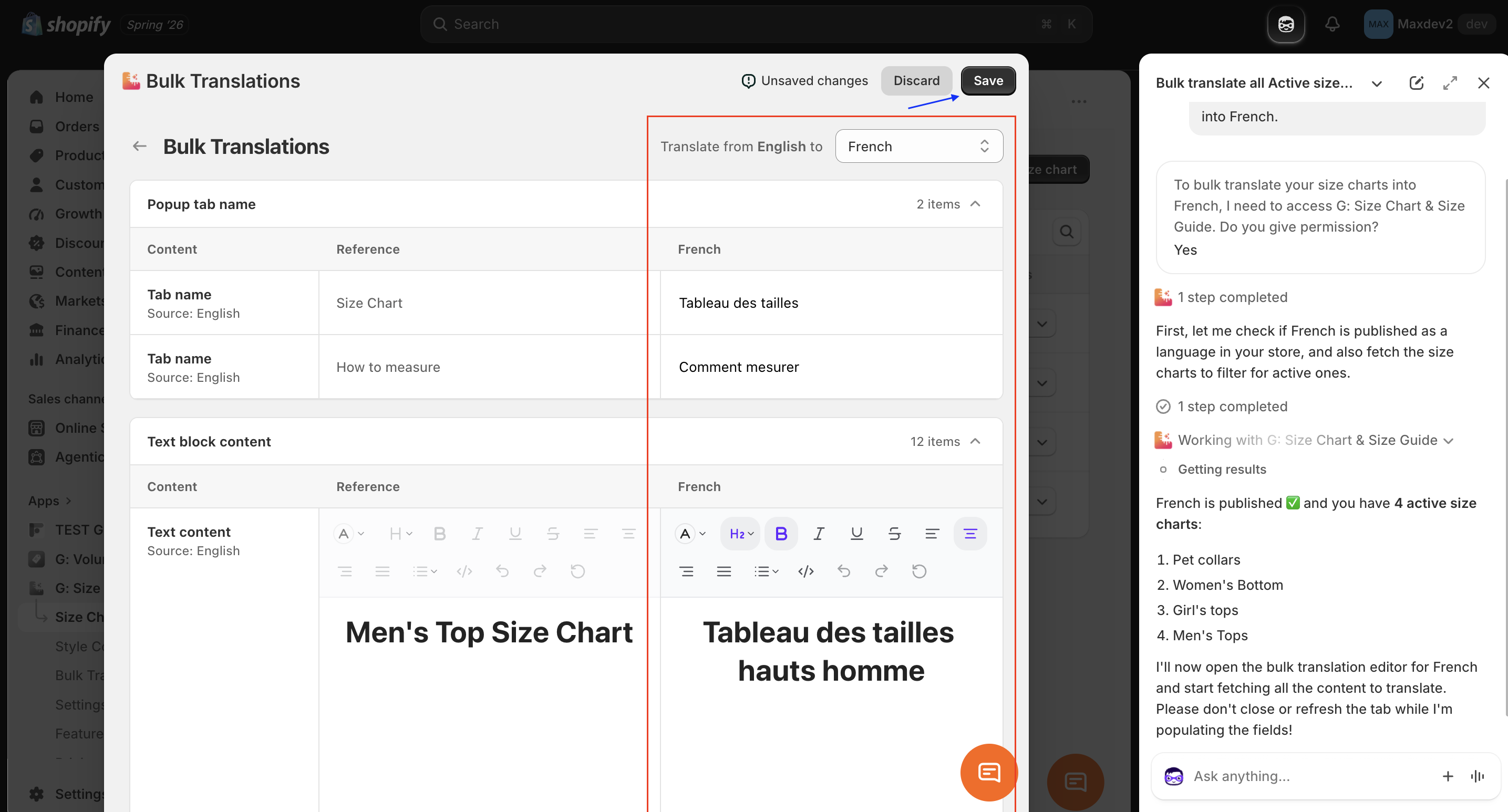
Bulk translate all Active size charts into French. |
Auto-translate with Sidekick
Right now, translating a size chart in G: Size Chart is manual, you open each language and type or paste the translation yourself. With Sidekick, you can just ask it to translate, and it does the work for you.
Ask Sidekick to translate one size chart, or translate all of them at once (bulk translation), and it will auto-generate the translation for every language you have set up. You don't need to type anything - just review the result, make any edits, and don't forget to save before you leave the page.
Example:
"Translate size chart "Pet collars" into Japanese." → Sidekick drafts the Japanese translation and opens it for you to review and edit. Save when you're happy with it.
"Bulk translate all Active size charts into French." → Sidekick auto-translates every active size chart into French. Review each one, edit as needed, then save.
With Sidekick, managing your size charts feels less like navigating settings and more like asking a colleague for help. It's a convenient AI assistant built right into your Shopify admin - always ready to look things up, guide you, or handle translations, whenever you need it.
Have questions or need help? Reach out to us at support@tapita.io.