Show Swatch in the Variant Selector Dropdown
You can now show color or image swatches in the variant selector dropdown of your offers, instead of plain text. It makes your offers look more polished and helps customers pick the right variant faster.
Before you start
This feature uses the swatch data from G: Color Swatch, so you need to set up your swatches there first. G: Volume Discounts & Upsell does not create swatches itself. It reads the configuration from G: Color Swatch and displays it in your offer dropdown.
Step 1: Set up swatches in G: Color Swatch
1. Open the G: Color Swatch app from your Shopify admin.
2. For each product option (for example Color), choose the swatch type: Color swatch or Image swatch.
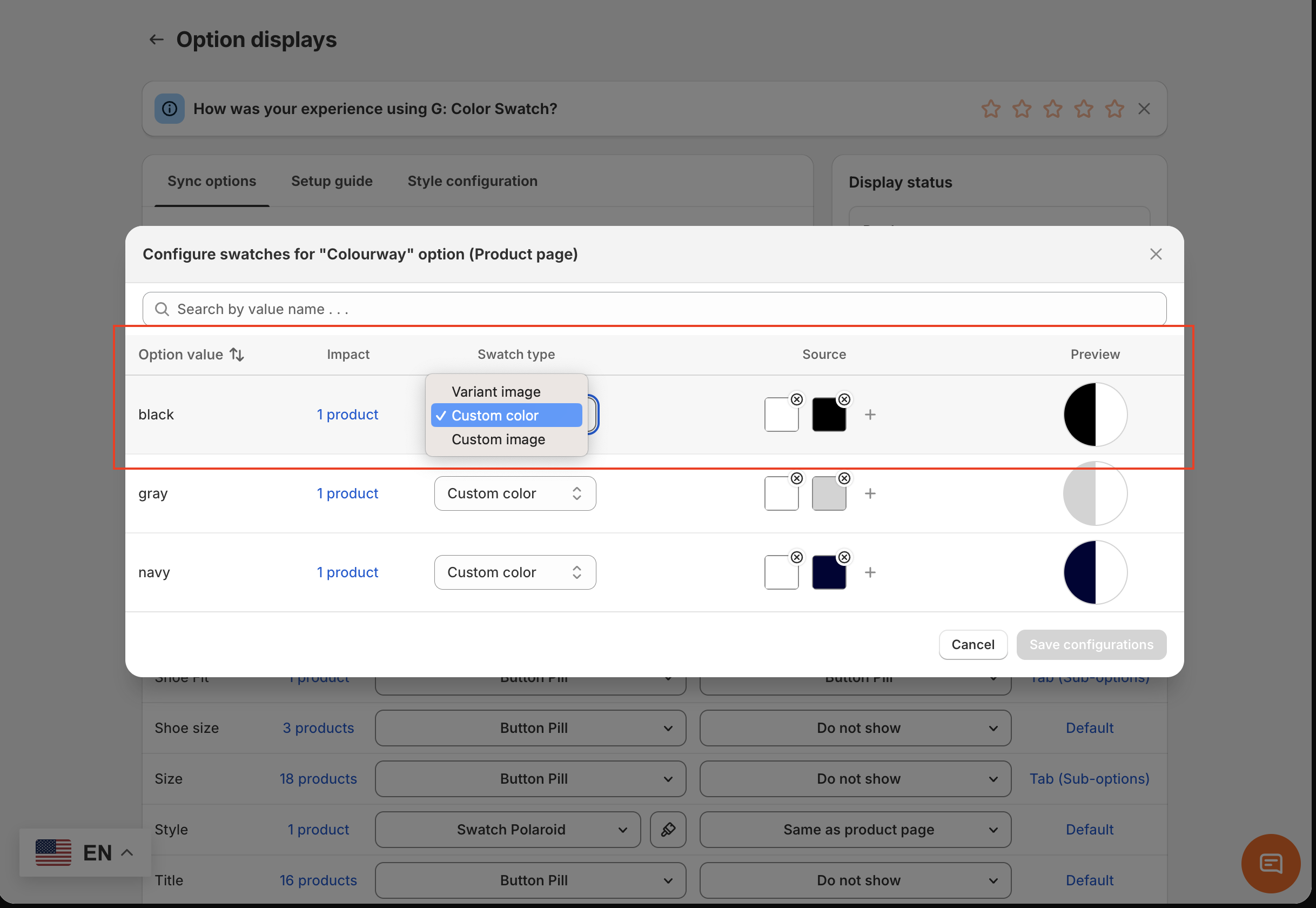
3. Save configurations
4. Turn on the app embed is turned on in your theme.
4. Turn on the app embed is turned on in your theme.
Pro tip:
- You can turn off Show swatch on product page in G: Color Swatch if you only want swatches to appear in your discount offers. It is optional and only controls how G: Color Swatch itself displays on the product page.
- Turning on G: Color Swatch won’t change anything on your storefront. It only lets G: Volume Discounts & Upsell take the swatch data from it.
Step 2: Turn on swatches in your offer
1. Go back to G: Volume Discounts & Upsell.
2. Open the offer you want to edit and go to the Discount Tiers tab.
3. Scroll down to the Variant display section.
4. Tick the checkbox Use dropdown with swatch.
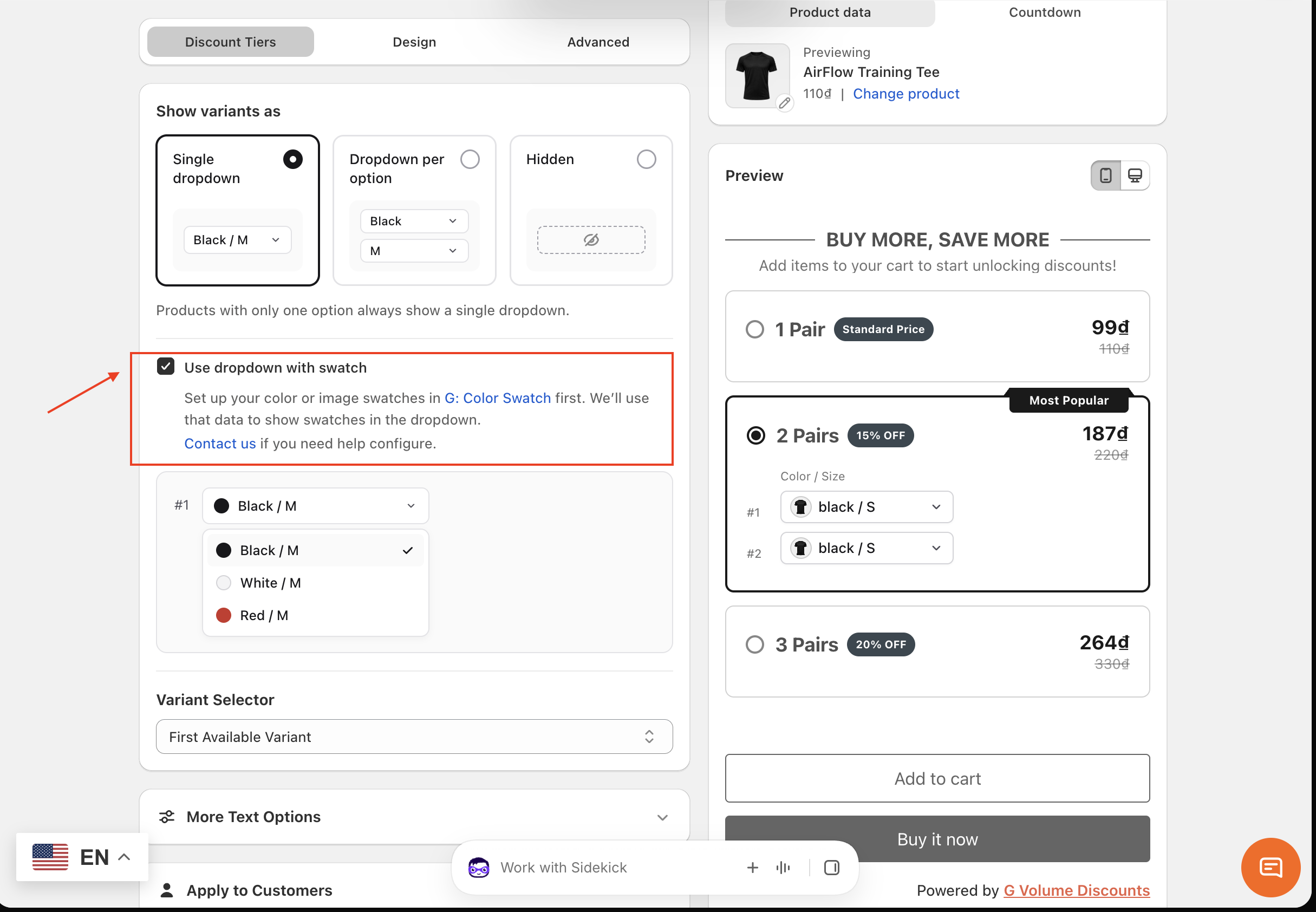
5. Click Save.
The app will take the swatch data you configured in Step 1 and display it in the variant dropdown on your storefront.

In-app preview when G: Color Swatch’s app embed is off:
Storefront view when G: Color Swatch’s app embed is off:
Note: If you tick “Use dropdown with swatch” but haven’t turned on the app embed in G: Color Swatch, the app has no swatch data to use.
In the offer preview, the dropdown keeps the swatch style but shows an empty “no image” swatch, so you know the information is missing. On your live storefront, customers see a normal text dropdown instead, so your store doesn’t look broken. To fix it, make sure the swatch type is saved in G: Color Swatch and its app embed is on.
In the offer preview, the dropdown keeps the swatch style but shows an empty “no image” swatch, so you know the information is missing. On your live storefront, customers see a normal text dropdown instead, so your store doesn’t look broken. To fix it, make sure the swatch type is saved in G: Color Swatch and its app embed is on.
In-app preview when G: Color Swatch’s app embed is off:
Storefront view when G: Color Swatch’s app embed is off:
==
Now you know how to show color and image swatches in your offer’s variant dropdown, so your offers look more polished and customers can pick the right variant faster. If you have any questions, please contact us via support@tapita.io