Set up your Quantity Discount and Volume Discount Offers
Boost sales for a single product or any products, boosting average order value (AOV), or clear excess inventory with ‘Quantity Discount’ Offer and ‘Volume Discount’ Offer in G: Volume Discounts & Upsell. They are designed to help Shopify merchants drive larger purchases through strategic, tiered discounts.
Key Benefits:
- Encourage customers to buy multiple units of the same product or any products
- Ideal for single product promotions, cross-selling or inventory clearing
- Maintain profitability with controlled discount structures
Features:
- Flexible discount options: Set percentage-based, fixed-amount, or custom discounts
- Targeted promotions: Apply to specific products or customer groups with advanced conditions
- Brand-aligned customization: Match colors, styling, and layouts to your store’s branding
- Seamless integration: Works effortlessly within your Shopify store to boost average order value (AOV)
For the instructions to install the app and all offers explanation, please head to the Getting Started Guide. Quantity Discount and Volume Discount have the same condition and options for configurations. Therefore, this guide will give a comprehensive and applicable guideline for both discount offer types.
Step 1: Setup the G: Volume Discounts & Upsell app
Go to the Shopify App Store and install the G: Volume Discounts & Upsell app.
After installation, you'll see quick tutorials to help you get started.
Next, to activate G: Volume Discounts & Upsell on your store, click on the button ‘Enable App’.
Next, toggle the ‘Bundle Widget’ button ON, and you’ve just finished the very first step.
Step 2: Create your First Offer
Back to the app’s main menu, continue to the next step - add the first offer to your store by clicking the button ‘Create Offer’.
For your Quantity Discount and Volume Discount offers to meet your business needs, we provide the 3 main configurations. The offer will appear on your product page as a widget.
1. Discount Tiers configuration
Set the offer’s name, widget's name, apply to what products, and customer criteria.
1.1. Name, Priority, Status
Name
Add a name for your offer.
This only shows in Shopify backend and not to customers.
Priority
Set the priority for your offer, especially when you have 2 or more offers to indicate which offer should be applied first.
Type in a number (e.g. 0 - lowest priority). The higher the number, the more prioritized the offer.
Status
Control whether an offer is enabled on your storefront.
On the dropdown, choose Active to enable the offer on the storefront, choose Draft to disable it.
1.2. Widget title & Subtitle
Enter the title or the subtitle of the discount widget. To enable or disable a content, click on the eye icon at the end of each content.
For Dynamic content, you can customize these content below:
Subtitle: Show content when the cart is empty.
Recommend subtitle: Show when the cart has items and message to encourage adding more items.
Completed Subtitle: Show when the cart matched the last tier.
You can also insert variables into each content box:
{{ min_tier }} - Show required quantity to unlock the next discount tier.
{{ discount_tier }} - Show discount value offered at the next tier.
{{ in_cart }} - Show current number of items in the cart.
{{ remaining }} - Show items needed to unlock the next discount tier.
For clearer illustrations, click Examples to view our content suggestions and use the preview pane to see how your configurations appear in the storefront.
Footer
Enter text for the footer of the widget (at the bottom of the subtitle)
Example: *Offer expires on August 20, 2026.
1.3. Apply to Products
All Product
Select this to apply the offer for all products on your storefront.
Specific Product
Search for products to be applied with this offer by typing in the search bar or click the Browse button.
Custom Segment
Control which segments can receive the offer. There are 4 rules of custom segments and you can add up to 4 rules for a single Quantity Discount offer.
Product by tags
Select products based on specific tags (e.g. “sales”, “new”, “pro”)
Type a tag in the ‘Enter tag product’ bar. To add more tags, simply click the + button and type in more.
Logical conditions (dropdown):
Include all: Only apply for products that have all the entered tags.
Include any: Apply for all products that have at least 1 among the entered tags.
Exclude all: Apply all except for products that have all the entered tags.
Exclude any: Apply all except for products that have at least 1 among the entered tags.
Products type
Filter the products according to the product type (custom product categories e.g. Color lines, Sleeves color, etc.)
Logical conditions (dropdown):
Is: Apply for products that meet the entered type.
Is not: Apply for products that are not in the entered type.
Products by collection
Target products that belong to specific collections.
Search for collections to be applied with the offer by clicking the Browse button.
You can add unlimited discount tiers. The order of tiers on the widget follows ascending order (Tier 1 on the top, right below is Tier 2, Tier 3, etc.). You can also add or remove a discount tier.
Title: Add the title for the discount tier (e.g. Buy 2+ items, Buy 4+ items)
- Min quantity: Set the minimum quantity valid to this discount tier (e.g. 2). This is a required field.
- Max quantity: Set the maximum quantity valid to this discount tier (e.g. 5). This is an optional field and you can delete it if not used.
Discount
- Discount type: Choose from 4 discount types and enter the discount value for each.
- No Discount - The price is unchanged.
- Fixed Discount - Discount only a fixed amount, the original price will be reduced by the discount value. (e.g. discount value: $5)
- Percentage Discount - Discount on a percentage of the price (e.g. discount value: 10%)
- Fixed product price - Assign new price for the discount tier. (e.g. The original price for 1 pair is $5, when you apply the Fixed product price for a tier, the overall price for 2 pairs becomes $9 → Discount value: $9).
1.5. Apply to Customers
All customer
Select this for the offer to be available for all customers.
Custom segment
Login status
Apply the offer based on the login status of customers. Choose between Logged in or Logged out.
Customer tags (Only for Logged in users)
Filter customers using custom tags (e.g., "VIP", "wholesale")
Logical conditions (dropdown):
Include all: Only apply for customers that have all the entered tags.
Include any: Apply for all customers that have at least 1 among the entered tags.
Exclude all: Apply all except for customers that have all the entered tags.
Exclude any: Apply all except for customers that have at least 1 among the entered tags.
Country
Filter customers based on their country of residence.
Search for countries and tick on what countries you want to apply this offer to.
Total amount spent (Only Logged in users)
Target customers who have spent a certain total amount
Set the minimum and maximum spending limit of the customers for the offer.
Number of orders (Only Logged in users)
Target customers based on how many orders they’ve placed
Set the minimum and maximum number of orders completed limit of the customers for the offer.
Choose which customer types this offer applies to:B2B Customers: Customers who belong to the store’s B2B catalog.Retail Customers: Regular retail customers.Both: Applies to both B2B and Retail customers.
2. Design configuration
Choose from design presets, adjust widget layout, setting colors for widget elements, and typography.
2.1. Preset
We offer various ready-made presets for the discount widget to help save your time editing. The current preset on the preview pane is Sunset Glow.
2.2. Widget layout
Tier padding
Control the outer spacing of the tier text content.
Slide to your desired value. (e.g. 12 px)
Tier spacing
Control the spacing between tiers.
Slide to your desired value. (e.g. 4 px)
Horizontal padding
Control the width of all discount text content.
Slide to your desired value. (e.g. 8 px)
Vertical padding
Control the height of all discount text content.
Slide to your desired value. (e.g. 24 px)
Widget spacing
Control the spacing above and below of the widget.
Slide to your desired value. (e.g. 10 px)
Widget background
Control the background color of the widget with 4 color options.
- None: Make the widget background transparent.
- Color: Apply a solid color to the widget background.
- Gradient: Click on the color icon to start customizing the gradient color.
- Angle: Control the angle of gradient by sliding to your desired value.
- Pattern: Choose from 150+ beautiful and practical patterns. Including festival patterns: Valentine, Halloween, Christmas, etc.
Tier background
Control the background color of the tiers.
Configure similarly to the Widget background.
2.3. Setting colors
Widget border
Control the style of the widget border.
Width
Control the thickness of the widget border.
Slide to your desired value. (e.g. 0.5 px)
Radius
Control the corner rounding of the widget border.
Slide to your desired value. (e.g. 12 px)
Style
Control the style of the widget border.
Choose from the dropdown. Use the preview pane and see the icon of the widget border to adjust the widget appearance
Color
Adjust the color of the widget border.
Tier border
Control the style of the tier border.
Configure similarly to the widget border.
Widget title: Adjust the color of the widget title.
Widget subtitle, Tier title, Tier badge, Tier badge background: Configure similarly to the widget title.
2.4. Typography
Widget title
Format, choose 1 among 3 options: Bold, Italic, Underlined
Font family: Choose from 45+ available fonts
Font size: Slide to your desired value (e.g. 18 px)
Widget subtitle, Tier title, Tier badge: Configure similarly to the widget title.
3. Advanced configuration
Adjust the offer schedule and translation for multiple markets.
- Above Form Actions: above the Add to cart button
- Below Form Actions: below the Add to cart button
- Custom Position:
- Selector: Enter the CSS class of the element you want to target (e.g.,
.product-form). - Position Options:
- Before begin: Places the widget outside and above the target element.
- After begin: Places the widget inside the target element, at the very top.
- Before end: Places the widget inside the target element, at the very bottom.
- After end: Places the widget outside and below the target element.
3.2. Schedule
Run the campaign continuously
This option means the discount rule will start immediately and run until you deactivate it.
Run campaign on schedule
This option means the discount rule will run on a specific schedule you define.
Set the start date and start time. You can also set the end date and time.
3.3. Countdown timer
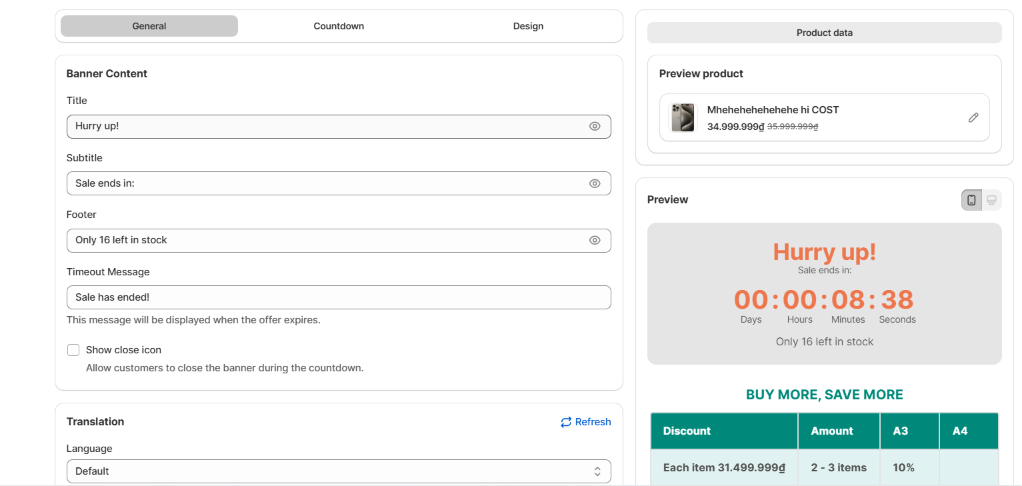
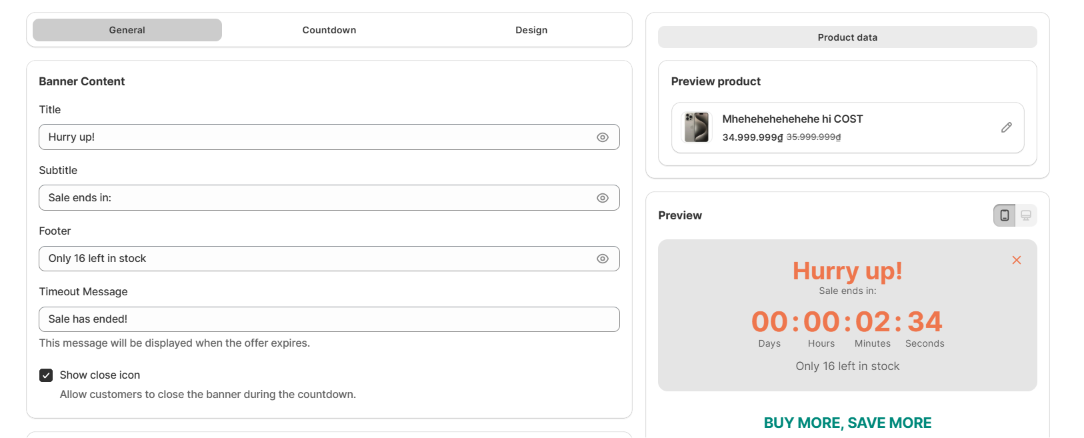
Step 1: Configure Banner Content (General Tab)This is where you define the message and the structure of your timer.- Title & Subtitle: Use high-urgency phrases (e.g., "Hurry up!", "Sale ends in:").
- Footer: Add social proof or scarcity indicators like "Only 16 left in stock."
- Timeout Message: Set the text that appears once the timer hits zero (e.g., "Sale has ended!").
- Translation: Add a translation of the above text
- Widget Position: Choose how the timer sits relative to your discount table:
- Above Offer: Best for immediate visibility.
- Below Titles / Below Offer: Keeps the focus on the product first.
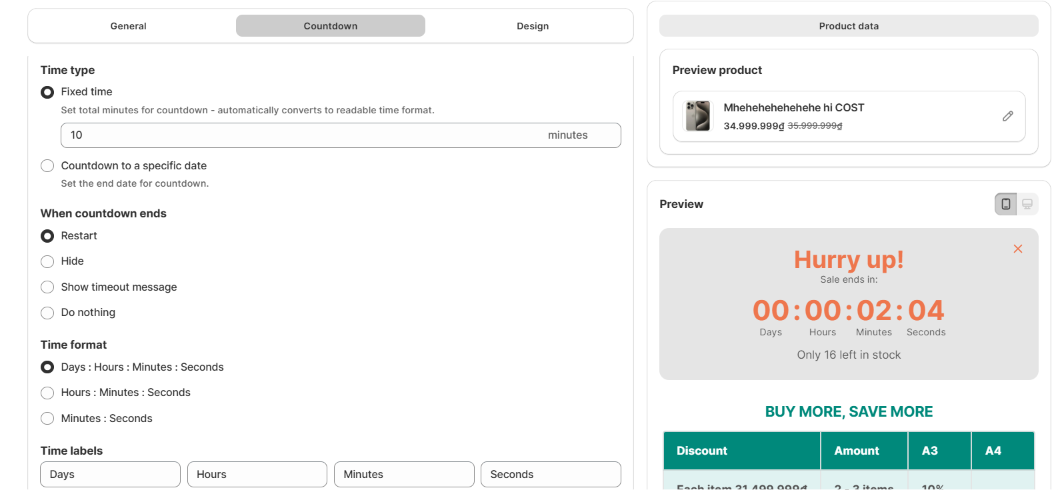
Step 2: Set the Timer Logic (Countdown Tab)Control how the time runs and what happens when it expires.- Time Type:
- Fixed time: Sets a specific duration for every visitor (e.g., 10 minutes).
- Specific date: Sets a hard deadline for a specific holiday or event (e.g., ends at midnight on Friday).
- When countdown ends: * Restart: Great for evergreen sales.
- Hide/Show message: Cleanest option for one-time flash sales.
- Time Format: Choose whether to show Days, Hours, Minutes, or just Seconds depending on how short the sale is.
Check the detailed guide on setting the Countdown Timer here.
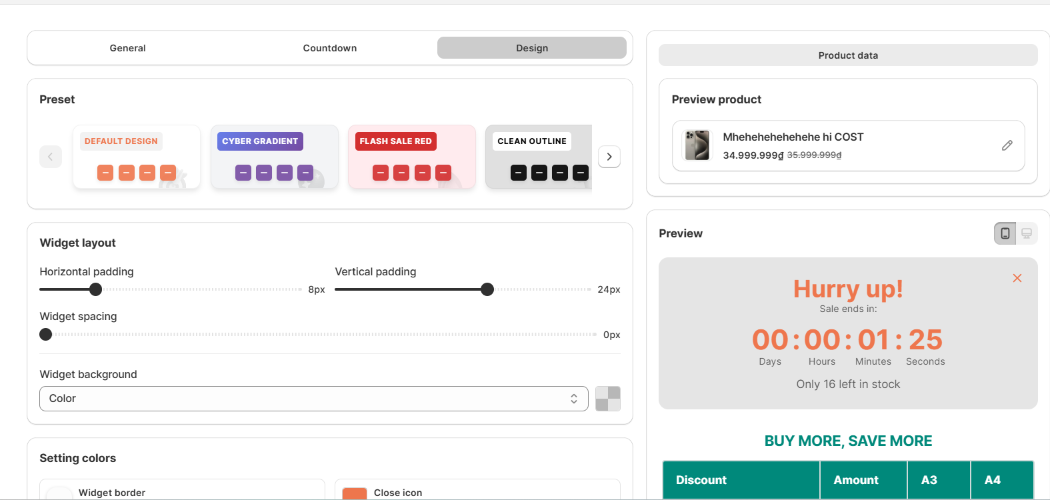
Step 3: Customize the Look (Design Tab)
Match the widget to your store's branding.- Presets: Choose from pre-made styles (e.g., "Cyber Gradient" or "Flash Sale Red") for a quick setup.
- Widget Layout: Adjust Padding (inner space) and Spacing to make the banner look balanced on your page.
- Setting Colors: Manually adjust the colors of the background, numbers (Time value), and text to make them "pop" against your theme.
- Typography: Change font sizes.
- Above Offer: Best for immediate visibility.
- Below Titles / Below Offer: Keeps the focus on the product first.
- Fixed time: Sets a specific duration for every visitor (e.g., 10 minutes).
- Specific date: Sets a hard deadline for a specific holiday or event (e.g., ends at midnight on Friday).
- Hide/Show message: Cleanest option for one-time flash sales.
3.4. Translation
Language
Choose a language for translation of the widget content.
These are the languages published in your store. To manage or add more, click the here button. Type in your translation for this language. If you leave these fields unedited, the widget will show the default text as in the above image.
Start implementing these features today and watch your sales grow. The Tapita team is always ready to help, reach out for support to make the most of G: Volume Discounts & Upsell here support@tapita.io